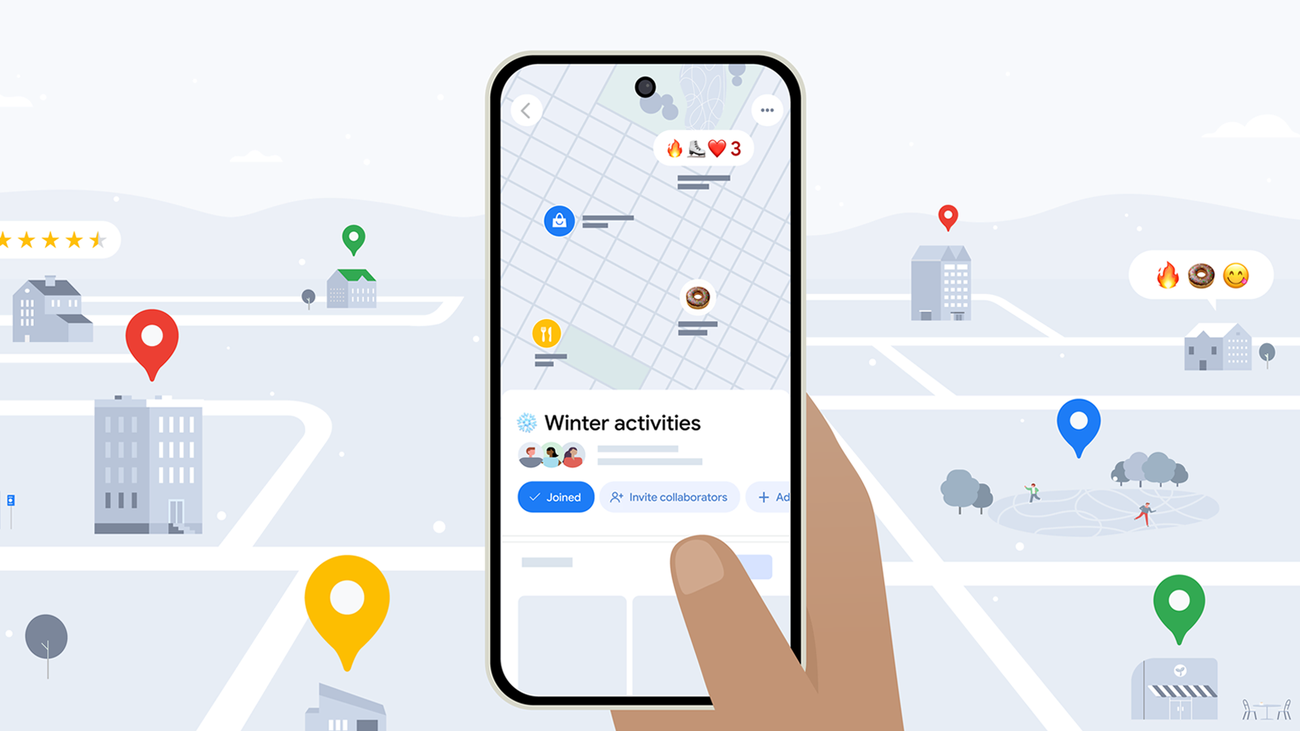
Google Maps remains the go-to navigation app for billions worldwide, but in 2026, it’s more customizable than ever. With updated layers, emoji-enhanced lists, eco-routing, offline maps, and smarter settings, you can tailor the app to fit your daily routine.
These 3 easy ways help you personalize Google Maps for faster, smarter, and more enjoyable everyday use. No advanced skills needed—just a few taps in the app. We’ll cover step-by-step how-tos, comparison tables, tips, and FAQs to get you started quickly.
1. Organize Saved Places with Custom Lists and Emojis
One of the simplest yet most powerful customizations is creating personalized lists for your favorite spots—restaurants, shops, gyms, or family locations—with fun emojis for quick visual recognition.
Why it’s great for daily use:
- Quickly find “Top Biryani Spots” (🍲) or “Daily Commute Shortcuts” (🚗).
- Share lists with family or friends.
- Access offline if downloaded.
How-To: Create and Customize Lists with Emojis
- Open the Google Maps app (update to latest 2026 version via Play Store/App Store).
- Tap your profile picture or initial (top-right) → Your places → Saved.
- Tap + New list (or the + icon).
- Enter a name (e.g., “Patna Favorites”) and optional description.
- Tap the emoji icon (or “Choose icon”) → pick an emoji (🍛 for food, 🏠 for home spots).
- Set visibility: Private, Shared (collaborative editing in 2026), or Public.
- Tap Create.
- Add places: Search a location → tap Save → choose your list.
- View: Go back to Saved → tap your emoji-labeled list to see pinned spots on the map.
Pro Tip: In low-data areas like Bihar, download the area offline first (see Way 3) so lists load fast.
2. Customize Navigation Settings for Your Driving Style
Make every drive smoother by setting permanent preferences like avoiding tolls/highways, enabling eco-friendly routes (new in 2026 updates), or adjusting map display (day/night, 3D buildings).
This saves money on tolls, reduces fuel use, and improves visibility during night commutes.
How-To: Set Default Navigation Preferences
- Open Google Maps → tap your profile picture → Settings.
- Scroll to Navigation (or search “Navigation” in settings).
- Under Route options or Driving preferences:
- Toggle Avoid tolls, Avoid highways, Avoid ferries.
- Enable Eco-friendly routing (2026 feature prioritizes fuel-efficient paths).
- Set Map display: Choose “Automatic” (adapts to time), “Day”, or “Night”.
- Turn on Speedometer, Speed limits, 3D buildings for better awareness.
- Under Voice & sound, adjust volume or choose fun voices.
- Save—changes apply to all future navigations.
Bonus: For quick one-time changes, start navigation → tap route preview → Route options → toggle avoids.
Comparison Table: Navigation Customization Options
| Setting | How to Access | Benefit for Daily Use | 2026 Update Highlight |
|---|---|---|---|
| Avoid Tolls/Highways | Navigation > Route options | Saves money, avoids traffic jams | Permanent default + eco-routing |
| Eco-Friendly Routing | Navigation > Route options | Reduces fuel/carbon footprint | New priority in route suggestions |
| Map Display (Day/Night) | Navigation > Map display | Better visibility in low light | Automatic adaptive mode improved |
| 3D Buildings/Speedometer | Navigation > Map display | Enhanced situational awareness | Smoother rendering on mid-range phones |
| Voice Navigation | Navigation > Voice & sound | Hands-free, personalized alerts | More natural voices + volume auto-adjust |
3. Download Offline Maps and Add Map Details/Layers
Customize by downloading areas for offline use (perfect for travel or spotty internet) and toggling layers like traffic, transit, or terrain for real-time insights.
Offline maps work fully for navigation, searching saved places, and viewing lists—no data needed.
How-To: Download Offline Maps & Customize Layers
- Open Google Maps → tap your profile picture → Offline maps (or search “Offline”).
- Tap Select your own map → zoom/pan to area (e.g., Patna city or Bihar routes).
- Tap Download → name it (e.g., “Patna Daily”) → confirm (uses ~100-500MB).
- For layers: Tap Layers icon (top-right, square stack) → choose:
- Traffic (real-time congestion colors).
- Transit (bus/train lines).
- Bicycling (bike lanes).
- Satellite or Terrain for visual detail.
- One layer active at a time—tap to switch.
Pro Tip: Auto-download home/work areas in Settings > Offline maps > Preferences for automatic updates over Wi-Fi.
Tips for Everyday Customization in 2026
- Combine features: Add starred places to emoji lists → download offline → set toll avoidance.
- For Bihar/rural users: Prioritize offline maps and eco-routing to save data/fuel.
- Update regularly: New 2026 features like improved layers and shared lists roll out often.
- Privacy: Customization stays on your device; shared lists require explicit permission.
FAQs: Customizing Google Maps for Everyday Use
1. How do I make Google Maps remember to avoid tolls?
Go to Settings > Navigation > Route options > toggle “Avoid tolls” as default—applies permanently.
2. Can I use emoji lists offline?
Yes—if the area is downloaded offline, lists and pins work fully.
3. What’s the best layer for daily commuting?
Traffic overlay—shows real-time congestion in colors (green = clear, red = heavy).
4. How much storage do offline maps use?
Varies by area size; a city like Patna uses 100-300MB—manage in Offline maps.
5. Are these features available worldwide?
Yes, including India—emoji lists, offline maps, and navigation settings work globally.
6. Can I customize the vehicle icon?
Yes: Navigation settings > Driving options > Vehicle icon—pick car types for fun.
7. How do I share my custom list?
In Saved > your list > Share > generate link or add collaborators.
