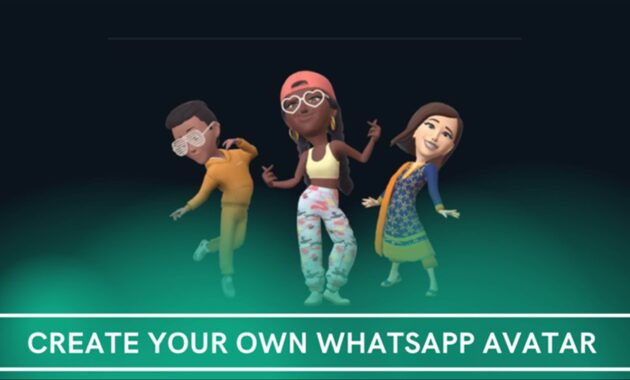
In 2026, creating avatars in WhatsApp has become one of the most popular ways to personalize your profile and chats. With enhanced customization options, improved realism, better lighting, shading, and even subtle animations, WhatsApp avatars let you express yourself through fun, cartoon-style versions of yourself. These avatars serve multiple purposes: as your profile picture (or alongside it), as expressive stickers in chats, and even as reactions to status updates.
Whether you’re looking for a quick way to add personality to group chats, or anywhere worldwide wanting privacy-friendly alternatives to real photos, this feature is available globally on both Android and iOS. The process is straightforward, works offline for most steps, and requires only the latest WhatsApp version.
why avatars matter, two creation methods (manual and photo-based), detailed how-tos, customization tips, usage ideas, comparison tables, and FAQs to help you master WhatsApp avatars fast.
Why Create a WhatsApp Avatar in 2026?
WhatsApp avatars offer:
- Privacy: Use a stylized cartoon instead of real photos.
- Fun & Expression: Send avatar stickers showing emotions (happy, sad, celebratory).
- Consistency: Set the same avatar as profile pic or use it in statuses.
- Inclusivity: Enhanced options for skin tones, hairstyles, face shapes, body types, and accessories for better representation.
- Updates: 2026 brings improved detail, lighting, shading, and automatic style enhancements to stickers (profile pics keep your chosen look).
Avatars sync across devices and work in individual/group chats, status replies, and more.
Two Ways to Create Your WhatsApp Avatar
WhatsApp provides two main methods:
- Create Manually — Full control over every detail (ideal for creative users).
- Create from Photo/Selfie — AI suggests avatars based on your picture (faster, more realistic match).
Both methods generate a base avatar you can further edit.
Comparison Table: Manual vs. Photo-Based Avatar Creation
| Method | Time Required | Control Level | Best For | Privacy Notes | Requirements |
|---|---|---|---|---|---|
| Create Manually | 3–8 minutes | Very High | Custom looks, fun variations | No photo upload needed | Latest WhatsApp app |
| Create from Photo | 1–4 minutes | Medium-High | Realistic representation | Photo processed on-device | Good lighting for selfie |
Manual gives maximum creativity; photo method saves time with AI suggestions.
How-To: Create WhatsApp Avatar Manually (Step-by-Step)
This method works on Android and iOS.
- Open WhatsApp and ensure it’s updated (check Play Store/App Store).
- Go to Settings:
- Android: Tap the three vertical dots (More) in the top-right > Settings.
- iOS: Tap Settings at the bottom-right.
- Access Avatar:
- Scroll and tap Avatar (under your profile name).
- Start Creation:
- Tap Create your avatar > Get started.
- Choose Create manually.
- Customize Step-by-Step:
- Select skin tone.
- Choose hairstyle (length, color, texture).
- Pick face shape, eyes, eyebrows, nose, mouth, facial hair (if applicable).
- Add body type, outfit/clothing.
- Select accessories (glasses, hats, earrings, headwear).
- Choose expressions or poses for preview.
- Preview & Save:
- Tap Next or Done to review.
- Tap Save or Apply to finalize.
- Optional: Set as Profile Picture:
- Go back to Settings > tap your profile > Edit > Avatar > choose pose/background > Done.
You can also start in a chat: Tap the emoji/sticker icon > Avatar > Create your avatar.
How-To: Create WhatsApp Avatar from Photo/Selfie
- Follow steps 1–4 above.
- Choose Create from selfie or Take photo.
- Take or Select Photo:
- Tap the camera icon > hold to capture (good lighting recommended).
- Or select from gallery.
- AI Generates Suggestions:
- WhatsApp processes the photo on-device and shows 3–6 avatar variations.
- Customize & Refine:
- Pick your favorite suggestion.
- Edit skin tone, hair, clothes, accessories as needed.
- Save & Apply:
- Tap Done or Save.
- Set as profile photo if desired (same as manual method).
Note: Photos are processed locally for privacy—no upload to servers.
How to Use Your WhatsApp Avatar
Once created:
- As Profile Picture: Settings > your profile > Edit > Avatar > select pose/background.
- As Stickers: In any chat, tap emoji icon > Avatar tab > choose expression sticker.
- React to Status: Swipe on a status > tap avatar reaction options.
- Edit Anytime: Settings > Avatar > Edit avatar.
- Delete: Settings > Avatar > Delete avatar (fixes ongoing deletion bug in latest update).
Pro Tip: Create multiple avatars for fun—switch between them easily.
Tips for Perfect WhatsApp Avatars in 2026
- Use good lighting for selfie method to get accurate suggestions.
- Experiment with 2026 style updates—stickers auto-upgrade for better realism.
- Combine with new animated features (e.g., 2026 stickers) for festive chats.
- For rural/low-data areas: Creation is mostly offline; only initial sync needs internet.
- Privacy: Avatars don’t reveal real identity—great for groups or public profiles.
FAQs: Creating Avatars in WhatsApp 2026
1. Is the WhatsApp avatar feature available worldwide?
Yes—globally on Android and iOS, including India, with full support in 2026.
2. Can I use my avatar as my profile picture?
Yes—set it alone or alongside your real photo via profile edit.
3. How do I get avatar stickers in chats?
Open any chat > emoji/sticker icon > Avatar tab—your expressions appear automatically.
4. What if my avatar won’t delete?
Update WhatsApp to the latest version—Meta is fixing this bug in early 2026.
5. Does creating from photo upload my picture?
No—processing happens on-device for privacy.
6. Can I change my avatar later?
Yes—go to Settings > Avatar > Edit avatar anytime.
7. Are avatars animated in 2026?
Stickers have improved animations and expressions; profile avatars remain static but with better detail.
