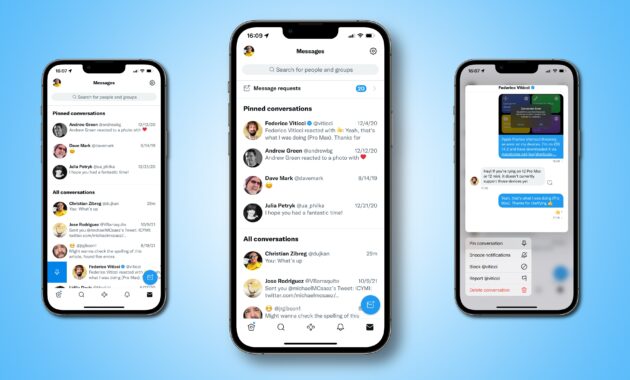
X (formerly Twitter) continues to refine its Direct Messages (DMs) experience. One of the most useful features for busy users, where quick access to key chats saves time during commutes or spotty connectivity—is pinning conversations. This lets you keep up to six important DM threads at the very top of your inbox, so favorite contacts, business discussions, family groups, or client threads are always one tap away.
Whether you’re managing freelance gigs, staying connected with family worldwide, or handling customer support, pinning DMs on X boosts efficiency and reduces inbox clutter.
Why Pin Direct Messages on X in 2026?
X’s DM inbox can fill up quickly with notifications, group chats, and spam. Pinning solves this by:
- Prioritizing key conversations (e.g., work clients, close friends, or ongoing collaborations).
- Saving time—no endless scrolling.
- Working across devices: Pins sync instantly on mobile and web.
- Supporting up to 6 pinned chats (in the order you pin them).
- Complementing recent X Chat updates (end-to-end encryption, message editing, reactions).
Pinning is especially helpful in low-connectivity areas—once pinned, chats load faster even on slower networks.
How Pinning Works on X
Pinned conversations stay fixed at the top of your DM inbox. They appear in the sequence you pinned them (first pinned = topmost). You can unpin anytime without losing messages.
Key Limits (2026):
- Maximum: 6 pinned conversations.
- Applies to individual and group DMs.
- Available on Android, iOS, and web (X.com).
- No extra cost or subscription required.
How-To: Pin a Conversation on X Mobile App (Android/iOS) – Step-by-Step
The mobile method is the fastest for most users.
- Open the X App – Launch X on your phone and log in.
- Go to Messages – Tap the envelope icon (bottom navigation bar on iOS; side menu or bottom on Android).
- Find the Conversation – Scroll or search for the DM you want to pin (individual or group).
- Pin It:
- Swipe Method (easiest): Swipe left-to-right on the conversation → tap the pin icon (looks like a pushpin).
- Alternative: Long-press (hold) the conversation → tap Pin Conversation from the menu.
- Confirm – The chat instantly moves to the top with a small pin icon beside it.
- Repeat for up to 6 chats.
To Unpin:
- Swipe or long-press the pinned chat → tap Unpin Conversation.
Pro Tip: For group chats (up to 256 members), pinning is perfect for ongoing collaborations or family updates.
How-To: Pin a DM on X Web/Desktop (X.com)
Desktop pinning is great for work-from-home setups.
- Log into X.com – Open your browser and go to x.com.
- Access Messages – Click the Messages tab (envelope icon) on the left sidebar.
- Locate the Conversation – Find the chat in your inbox list.
- Pin It:
- Hover over the conversation → click the three dots (…) that appear.
- Select Pin Conversation from the dropdown.
- Done – The conversation jumps to the top of the list.
To Unpin: Hover → three dots → Unpin Conversation.
Pins sync immediately across all devices.
Comparison Table: Pinning DMs on X vs. Other Platforms (2026)
| Platform | Max Pinned Chats | Mobile Method | Desktop Method | Sync Across Devices | Extra Features |
|---|---|---|---|---|---|
| X (Twitter) | 6 | Swipe/long-press + pin icon | Hover + three dots | Yes | Order by pin time; group support |
| No native pin | Archive or starred messages | N/A | Yes | Star messages; no true inbox pin | |
| Telegram | Unlimited | Long-press + Pin | Right-click + Pin | Yes | Folders for advanced organization |
| Instagram DM | No pin | Mute/archive only | N/A | Yes | Vanish mode focus |
| Signal | No pin | Archive | N/A | Yes | Privacy-first, no pinning |
X offers a balanced limit—enough for essentials without overwhelming the inbox.
Tips to Maximize Pinned DMs on X in 2026
- Prioritize Order: Pin the most urgent first (e.g., client DM at #1).
- Combine with Other Tools: Use X’s message editing (up to 5 times), reactions, and encryption for secure pinned chats.
- For Business/Freelancers: Pin client threads to respond faster and improve service.
- Group Chats: Pin family or team groups for quick updates during travel or outages.
- Clear Clutter: Regularly unpin old chats; archive or delete inactive ones.
- Low-Data Tip (for Bihar/rural users): Pinned chats load priority content first—great on 2G/3G.
- Security Note: Recent X Chat updates added PIN protection—ensure your app is updated for full features.
FAQs: Pinning Direct Messages on X (Twitter) 2026
1. How many conversations can I pin on X?
Up to 6 at a time. They stay in the order you pinned them.
2. Does pinning work on both mobile and web?
Yes—pins sync instantly across Android, iOS, and X.com.
3. Can I pin group DMs?
Yes—perfect for family, teams, or client groups (up to 256 members).
4. How do I unpin a conversation?
Swipe/long-press (mobile) or hover + three dots (web) → select Unpin Conversation.
5. Why can’t I pin more than 6?
X limits it to keep the inbox clean—focus on your top priorities.
6. Does pinning require X Premium?
No—available to all users for free in 2026.
7. What if my pinned chats disappear?
Update the app, restart, or check Settings > Privacy and safety > Direct Messages for any beta toggles.
