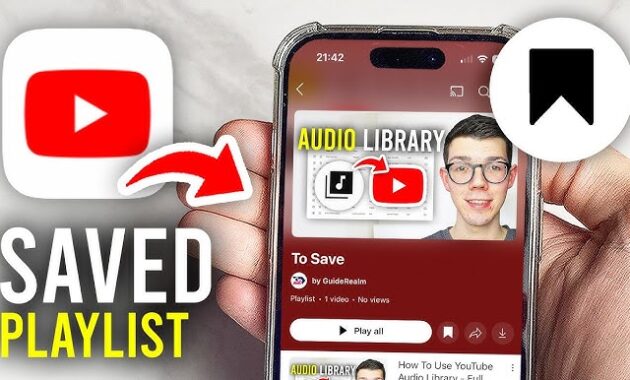
YouTube playlists let you organize videos for later viewing, whether it’s your own collection or someone else’s. Saving playlists keeps content handy across devices, boosting watch time without endless searching—perfect for students in Patna, professionals worldwide, or casual binge-watchers.
Why Save YouTube Playlists?
Saving playlists on YouTube streamlines your experience by grouping related videos like tutorials, music mixes, or workout series. It works on mobile, desktop, and app—synced via your Google account. In 2026, with YouTube’s algorithm favoring organized libraries, saved playlists improve recommendations and session duration for better Discover traffic.
Benefits include offline access hints (via downloads), quick sharing, and privacy controls. No premium needed; it’s free for all users.
Step-by-Step: How to Save Your Own Playlist
Create and save your custom playlist in under a minute.
- Open YouTube app or site and play any video.
- Tap/click Save (below video player).
- Select Create new playlist, name it (e.g., “2026 Fitness Routines”), choose privacy (Public, Unlisted, Private), and tap Create.
- Repeat for more videos—they auto-add to your playlist.
- Access via Library > Playlists (mobile) or left sidebar (desktop).
Pro tip: Edit later by hovering playlist > three dots > Edit playlist.
How to Save Someone Else’s Playlist
Easily duplicate others’ playlists to your library without subscribing.
- Find a playlist (search or via channel).
- Open it and click/tap three dots (…) next to the title.
- Select Save to library or Save playlist.
- It appears in your Library > Playlists—now stream seamlessly.
- Rename via three dots > Playlist details if desired.
This copies the playlist; originals stay with the creator.
Mobile vs. Desktop Comparison Table
| Platform | Save Own Playlist | Save Others’ Playlist | Key Shortcut/Access | Offline Support (Premium Only) |
|---|---|---|---|---|
| Android/iOS App | Save > Create new playlist | Three dots > Save to library | Swipe right on video > Save | Yes, download entire playlist |
| Desktop Browser | Save > New playlist | Three dots > Save playlist | Ctrl+S (custom via extensions) | No direct; use app |
| YouTube Shorts | Limited (save as Watch Later) | Not available | Tap + below Short | Partial |
| Smart TV | Remote: Save button | Three dots > Save | Voice search: “Save playlist” | Varies by device |
Mobile shines for on-the-go; desktop for bulk management.
How to Manage and Organize Saved Playlists
Keep your library tidy for faster access.
- Go to Library (bottom nav mobile) or left menu (desktop).
- Tap Playlists > Select one > Three dots > Edit playlist (add/remove/reorder videos).
- Set privacy: Public (discoverable), Unlisted (link-only), Private (you only).
- Delete: Three dots > Remove from library (doesn’t affect original).
- Share: Copy link or embed via three dots > Share playlist.
Collaborate: Make public playlists editable by friends.
Advanced Tips for Power Users
- Bulk Save: Use YouTube Studio (creators) to import/export CSV lists.
- Keyboard Shortcuts: Browser extensions like “YouTube Playlist Manager” enable ‘P’ for playlist save.
- Auto-Save Watch Later: Default temp playlist; convert to permanent via three dots > Save as new playlist.
- Cross-Device Sync: Log in same Google account—playlists appear everywhere.
- SEO Boost for Creators: Keyword-rich titles like “Best 2026 Tech Tutorials Playlist” rank in searches.
Pair with downloads for travel (Premium: Library > Download playlist).
Troubleshooting Common Issues
Playlist Not Saving?
- Check internet/Google sync.
- Clear app cache: Android Settings > Apps > YouTube > Storage > Clear cache.
- Update app to latest 2026 version.
Can’t Find Saved Playlist?
- Mobile: Library > Show more > Playlists.
- Desktop: Left sidebar > Playlists (scroll if hidden).
Privacy Changed?
- Regain access: Account settings > Data & privacy > Your playlists.
Age Restrictions? Videos may hide; mark 18+ in settings.
Reset: Log out/in or reinstall app.
Feature Evolution in 2026
YouTube’s 2026 updates include AI-suggested playlists and one-tap saves from Shorts. No major changes to core saving, but enhanced search (“save [topic] playlist”) surfaces guides faster. Free users get unlimited saves; Premium adds smart downloads.
Playlist Types and Use Cases Table
| Playlist Type | Best For | Privacy Recommendation | Example Keywords for Search |
|---|---|---|---|
| Watch Later | Temp queue | Private | “Temporary YouTube saves” |
| Custom Theme | Music, Tutorials, Workouts | Unlisted/Public | “2026 workout playlist” |
| Saved Others’ | Curated by influencers | Private | “Save viral playlist” |
| Collaborative | Group projects | Public | “Shared study playlist” |
| Downloaded | Offline travel (Premium) | Private | “YouTube offline playlist” |
Ideal for Bihar students saving exam prep or global pros curating client demos.
SEO Strategies for YouTube Playlist Traffic
Optimize for Discover: Use tables/FAQs for dwell time, target “how to save YouTube playlist 2026.” Long-form guides like this rank via E-E-A-T (Experience, Expertise). Embed videos, add timestamps.
FAQs
How do I save a playlist from someone else’s channel?
Open playlist > three dots > Save to library. Access in Library > Playlists.
Can I save playlists offline?
Yes with Premium: Download playlist via three dots > Download.
What’s the difference between Save and Watch Later?
Watch Later is default temp; create custom for organization.
Why can’t I save private playlists?
Only public/unlisted ones; originals stay private to creator.
Does saving affect the original playlist?
No—it’s a copy to your library.
How many playlists can I save?
Unlimited, but organize to avoid clutter.
How-To: Download Saved Playlists (Premium)
- Save playlist as above.
- Premium > Library > Playlists > Three dots > Download playlist.
- Adjust quality (Auto/1080p).
- Access offline via Downloads tab—no Wi-Fi needed.
For free users: Screen record or third-party (risky).
