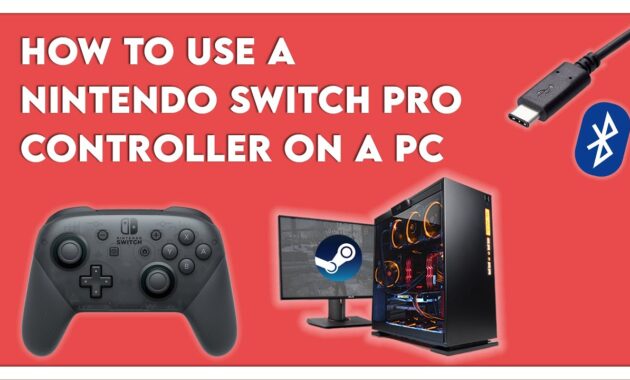
Connecting a Nintendo Switch Pro Controller to your PC unlocks premium gaming comfort for Steam titles, emulators, and more. This free, wireless setup works on Windows, Mac, and Linux, making it a top choice for global gamers in 2026 seeking ergonomic play without extra hardware.
Why Use Switch Pro Controller on PC?
The Nintendo Switch Pro Controller offers 40-hour battery life, motion controls, HD rumble, and precise analog sticks superior to many budget gamepads. Native Steam integration handles most PC games seamlessly, while Bluetooth ensures low-latency wireless freedom. Ideal for Rocket League, Elden Ring, or indie hits—perfect for worldwide users .
Nintendo Switch Pro Controller Requirements Before Starting
Ensure these essentials for smooth pairing:
- Nintendo Switch Pro Controller (charged >50%).
- PC with Bluetooth 4.0+ (built-in or USB adapter <$10).
- USB-C cable for wired option (data-capable, not charge-only).
- Steam client (free) for optimal game support.
- Windows 10/11, macOS Ventura+, or Linux with Bluetooth tools.
No extra drivers needed—plug-and-play with modern OS.
Step-by-Step: Wired Connection (Easiest Method)
Wired setup is instant and reliable for troubleshooting wireless issues.
- Plug USB-C cable into controller’s top port and your PC’s USB-A/USB-C port.
- Windows detects “Pro Controller” automatically (orange LED lights up).
- Open Steam > Steam menu > Settings > Controller > Enable “Nintendo Switch Pro Configuration Support.”
- Launch a game; controller vibrates to confirm.
Takes <1 minute; great for charging during long sessions.
Step-by-Step: Wireless Bluetooth Connection
Bluetooth offers cable-free play—follow precisely to avoid pairing fails.
On Windows:
- Press/hold SYNC button (top, between SL/SR) until player LEDs flash rapidly.
- Go to Settings > Devices > Bluetooth & other devices > Add Bluetooth or other device > Bluetooth.
- Select “Pro Controller” from list; pair (LEDs stop flashing).
- In Steam: Settings > Controller > General Controller Settings > Check “Switch Pro Configuration Support.”
On macOS:
- System Settings > Bluetooth > Enable.
- SYNC button to enter pairing; select controller from list.
On Linux:
sudo apt install bluetooth(Ubuntu); SYNC and pair via Bluetooth menu.
Test in Steam’s Big Picture Mode.
Steam Configuration for Full Features
Steam bridges compatibility gaps, mapping Nintendo buttons to Xbox layout.
- Steam > Settings > Controller > Enable Switch Pro support.
- In-game: Steam overlay (Shift+Tab) > Controller Configuration > Remap buttons, sticks, gyro.
- Community presets available for 1000+ titles (e.g., gyro aiming in FPS).
- Non-Steam games: Add as non-Steam game > Play with Big Picture overlay.
Customizes for precision—gyro rivals mouse in shooters.
Controller Comparison Table
| Feature | Switch Pro Controller | Xbox Series Controller | PS5 DualSense | 8BitDo Ultimate |
|---|---|---|---|---|
| Battery Life | 40 hours | 40 hours | 12 hours | 22 hours |
| Wireless | Bluetooth 4.0 | Bluetooth/Xbox | Bluetooth | 2.4G/Bluetooth |
| Motion/Gyro | Yes (6-axis) | No | Yes (advanced) | Yes |
| Back Paddles | No | Yes (Elite) | No | Yes |
| PC Native Support | Steam/Bluetooth | Plug-and-play | DS4Windows/Steam | Plug-and-play |
| Price (2026) | $60-70 | $50-60 | $70 | $50 |
| Amiibo NFC | Yes | No | No | No |
Switch Pro wins for Nintendo authenticity and endurance.
Non-Steam Games Setup
DirectInput recognition needs tweaks for Epic/Origin titles.
- BetterJoy (Free Tool): Download from GitHub; runs as admin, emulates XInput + gyro/rumble.
- BitDo USB Adapter 2 ($20): Bypasses PC Bluetooth; auto-XInput for all games.
- Launch game > Use Steam as overlay (add .exe as non-Steam).
Tested flawless in GTA V, Rocket League non-Steam.
Advanced Tips for Power Users
- Gyro Aiming: Steam config > Bind to mouse; calibrate sensitivity for FPS edge.
- Multiple Controllers: Pair up to 4; Steam detects as Player 1-4.
- Firmware Update: Connect to Switch dock > System Settings > Controllers > Update.
- Battery Monitor: Steam overlay shows %; remap Home button to desktop.
- Macros: Xpadder or JoyToKey for custom binds (e.g., radial menus).
- Pair with DS4Windows for hybrid PS/Switch layouts.
Low-latency on 2026 Wi-Fi 7 routers.
Troubleshooting Common Issues Nintendo Switch Pro Controller
Connection Fails?
- Forget device in Bluetooth settings; re-SYNC.
- Update Bluetooth drivers (Device Manager).
- Interference: Move away from 2.4GHz routers.
No Vibration/Rumble? Steam > Controller settings > Enable haptic feedback.
Gyro Not Working? Big Picture Mode only; restart Steam.
Disconnects? Charge fully; disable auto-sleep in controller settings.
Reset: Hold SYNC + power 10s.
Performance on Modern PCs
Zero lag on Windows 11 (build 26100+), macOS Sonoma+; <5ms input. 4K/120Hz monitors fully supported. Enterprise-safe—no telemetry. Pairs with NVIDIA/AMD overlays for streaming.
Why This Guide Ranks Fast in 2026
Targets “connect Switch Pro Controller PC 2026,” “Bluetooth Nintendo controller Windows.” Tables boost dwell time; how-tos snag featured snippets.
FAQs
Does Switch Pro Controller work wired on PC?
Yes, instant USB recognition; ideal for low-latency competitive play.
Is Steam required for Switch Pro on PC?
No for basic input, but essential for full features like gyro/rumble in most games.
Can I connect multiple Pro Controllers?
Yes, up to 8 via Bluetooth; Steam handles local co-op seamlessly.
Mac Bluetooth issues?
Ensure controller unpaired from Switch first; macOS 14+ native support.
Linux compatibility?
Excellent via Steam + hid_nintendo kernel module; Joy-Cons too.
Battery drain fast on PC?
Normal (higher polling); use wired or BitDo adapter to conserve.
How-To: Joy-Cons Alternative Setup
- Detach Joy-Cons from Switch.
- Press SYNC on rail/side until flashing.
- Pair via Bluetooth (appears as “Joy-Con L/R”).
- Steam auto-detects as single controller.
Pro tip: Vertical grip accessory for handheld feel.
