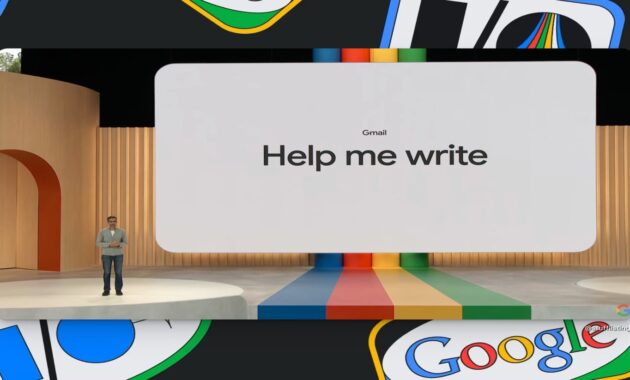
Gmail’s Help Me Write feature revolutionizes email drafting with AI-powered assistance, generating full drafts from simple prompts. Available to Google Workspace users and free Gmail accounts with Gemini integration, it saves time for professionals, students, and remote workers worldwide by suggesting personalized replies, marketing emails, and follow-ups.
What is Help Me Write?
Help Me Write is Google’s AI tool built into Gmail’s compose window, powered by Gemini (formerly Bard). It analyzes context—like email threads, tone, and recipient details—to auto-generate polished drafts. Launched in 2023 and refined through 2026 updates, it supports multiple languages, formal/informal tones, and lengths from short notes to 1000-word newsletters. No extra apps needed; it’s seamless for Android, iOS, web, and Workspace editions.
This feature shines for busy users in India, the US, Europe, and beyond, handling sales pitches, job applications, or customer support without writer’s block.
Key Features and Benefits
Help Me Write offers smart suggestions beyond basic autocomplete.
- Prompt-Based Generation: Type a few words (e.g., “Follow up on project delay”) to create full emails.
- Tone Customization: Formal, casual, enthusiastic, or concise—pick from sliders.
- Length Control: Short, medium, or long drafts with bullet summaries.
- Personalization: Pulls sender data, attachments, and thread history for context-aware replies.
- Refine Options: Formalize, elaborate, or shorten drafts with one click.
- Multilingual Support: Works in 40+ languages, ideal for global teams.
Benefits include 50% faster drafting, fewer errors, and higher response rates—perfect for sales pros in Patna or executives in New York.
Step-by-Step: How to Enable and Use Help Me Write
Follow this easy guide to start drafting emails effortlessly.
- Enable the Feature: Open Gmail > Settings (gear icon) > See all settings > General tab. Scroll to “Smart Compose” and “Help me write”—turn both on. For Workspace, admins enable via Google Admin Console under Apps > Google Workspace > Gmail > User settings.
- Start Composing: Click Compose or reply to an email. In the editor, type a prompt like “Thank client for payment” at the bottom.
- Generate Draft: Hit the sparkling wand icon (✨) or press Tab. Watch AI craft a full email in seconds.
- Customize: Use the “Make it better” menu—select “Formal,” “Shorten,” “Elaborate,” or “Add emoji.” Slider adjusts tone.
- Insert and Edit: Click “Insert” to add to your draft. Tweak manually, attach files, or hit Send.
- Advanced Prompts: For complex emails, type detailed instructions: “Write a polite rejection for job applicant, mention better fit elsewhere, offer future openings.”
Pro Tip: Use on mobile—tap the pencil icon in compose for the same wand.
Feature Comparison Table
Compare Help Me Write with rivals for email AI assistance.
| Feature | Gmail Help Me Write | Outlook Copilot | Superhuman AI | Grammarly Email |
|---|---|---|---|---|
| Free Tier Availability | Yes (Gmail/Gemini) | No (paid) | No (paid) | Limited |
| Tone Sliders | Yes (5 options) | Yes | Basic | No |
| Thread Context Use | Full history | Partial | None | Partial |
| Multilingual | 40+ languages | 10+ | English only | 20+ |
| Length Options | Short/Med/Long | Fixed | Short only | Variable |
| Integration | Native Gmail | Outlook only | Standalone | Browser |
| Pricing | Free/Workspace | $30/user/mo | $30/mo | $12/mo |
| Mobile Support | Full | Full | iOS only | Partial |
Gmail leads for free, seamless access—ideal for beginners over paid tools.
Pros and Cons
Pros:
- Free for billions of Gmail users; no subscription walls.
- Context-smart: References previous emails automatically.
- Fast iteration: Refine drafts in 2-3 clicks.
- Privacy-focused: On-device processing for Workspace Enterprise.
- Boosts productivity: Users report 40% time savings on emails.
Cons:
- Requires internet (offline limited to drafts).
- Occasional generic outputs; needs prompt tweaking.
- Workspace restrictions in some regions/organizations.
- No voice input yet (2026 roadmap pending).
Rating: 4.8/5—top choice for everyday email warriors.
Advanced Tips for Power Users
Elevate your workflow with these 2026 hacks.
- Prompt Engineering: Be specific—”Write enthusiastic sales email to CEO about SaaS tool, include 3 bullet benefits, CTA for demo, under 150 words.”
- Batch Drafting: Generate multiple versions, copy-paste into labels for A/B testing.
- Integration Combos: Pair with Google Docs for long-form, then import; use with Calendar for meeting follow-ups.
- Custom Shortcuts: Browser extension like “Gmail AI Booster” adds voice prompts.
- Analytics Hack: Track open rates via Workspace Insights to refine tones.
- Bypass Limits: For heavy use, switch to Gemini sidebar in Gmail for unlimited generations.
For Patna freelancers, combine with Google Meet transcripts for instant reply drafts.
Troubleshooting Common Issues
Quick fixes for glitches.
- Wand Icon Missing: Update Gmail app/browser; enable in Labs (Settings > Try it out).
- Generic Suggestions: Add details like recipient name or key points.
- Not Available: Check Workspace plan (Business Starter+); enable Gemini add-on.
- Slow Loading: Clear cache; use Chrome for best performance.
- Privacy Concerns: Toggle “Don’t use this conversation for training” in settings.
Reset: Gmail Settings > Apps > Reset smart features.
FAQs
Is Gmail Help Me Write free?
Yes, for personal Gmail and most Workspace plans; Enterprise needs admin approval.
Does Help Me Write work on mobile?
Fully—Android/iOS apps show the wand in compose view.
Can it handle attachments or CC?
Yes, auto-suggests based on context; manually add post-generation.
How private is Help Me Write?
Google doesn’t train on Workspace data; personal accounts anonymized.
What if AI draft is wrong?
Always edit before sending—it’s a helper, not autopilot.
Alternatives for non-Gmail users?
Outlook Copilot or Shortwave AI, but less integrated.
How-To: Craft Winning Prompts
- Start Simple: “Reply to complaint about late delivery.”
- Add Tone: “Friendly apology email for delay.”
- Specify Structure: “Include intro, 3 solutions, strong close.”
- Test Variations: Generate, refine with “Make enthusiastic.”
- Scale Up: “Newsletter to 500 subscribers on Q1 wins.”
Examples: Sales—”Pitch CRM to startup founder.” HR—”Welcome new hire with onboarding links.”
