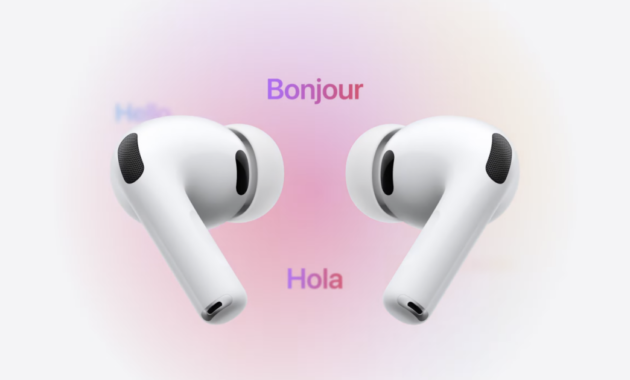
Apple’s Live Translation feature with AirPods breaks language barriers in real-time conversations, making it a game-changer for travelers, global teams, and multilingual families worldwide. Available on iOS 26 and later, it leverages Apple Intelligence for seamless, hands-free translation directly through your AirPods.
Feature Overview
Live Translation turns your AirPods into instant interpreters for in-person talks. Speak naturally—the other person hears your words translated into their language, while you hear theirs in yours. It supports dozens of languages like English, Spanish, Hindi, Mandarin, French, and more, with active noise cancellation (ANC) auto-engaging to focus on voices. Requires AirPods 4 or Pro 2 (or later), iPhone 16 series or newer, and Apple Intelligence enabled.
This built-in tool outperforms basic apps by integrating Siri, the Translate app, and hardware for low-latency results—no subscriptions needed.
Step-by-Step: How to Set Up and Use
Master Live Translation in minutes with these easy steps.
- Prep Your Device: Update to iOS 26+, pair AirPods via Bluetooth, and enable Apple Intelligence (Settings > Apple Intelligence & Siri > Turn On).
- Launch Translate App: Open Translate on iPhone, tap “Live” at bottom.
- Pick Languages: Select the speaker’s language (e.g., Spanish) and yours (e.g., English).
- Start Session: Tap “Start Translation.” Pop in AirPods—you’ll hear a chime.
- Activate Hands-Free: Press/hold both AirPods stems together, say “Hey Siri, start Live Translation,” use iPhone Action button (if set to Translate), or tap Dynamic Island icon.
- Converse Naturally: Talk—them hearing your translated speech, you hearing theirs. Stop via “Hey Siri, end translation” or app.
- Fine-Tune: Adjust volume, toggle ANC, or switch languages mid-chat.
Pro tip: Test in quiet spots first; works offline for downloaded languages.
Compatible Devices Table
Quickly check if your gear supports Live Translation.
| Device Category | Requirements | Supported Models |
|---|---|---|
| AirPods | ANC-enabled, latest firmware | AirPods 4, Pro 2/3, Max |
| iPhone | iOS 26+, Apple Intelligence | iPhone 16 series and newer |
| iPad/Mac | iPadOS 26+/macOS Tahoe+ | M-series chips or newer |
| Languages | 50+ bidirectional | English, Hindi, Spanish, etc. |
| Internet Needed | Partial (offline for basics) | Yes for initial downloads |
AirPods Pro shine with superior ANC for noisy environments like airports.
Pros and Cons
Pros:
- Hands-free, real-time bidirectional translation—no apps switching.
- Privacy-focused: On-device processing via Apple Intelligence.
- Free, integrated—no extra downloads or fees.
- Versatile activation: Stems, Siri, Action button, or Translate app.
Cons:
- Hardware-limited: Needs newer AirPods/iPhone (no older models).
- Conversation-only: No text/docs yet (use standard Translate for that).
- Language gaps: Not all dialects; accuracy dips in accents/noise.
- Beta vibes: iOS 26 rollout ongoing as of 2026.
Rating: 4.7/5—essential for international users, rivals Google Pixel’s feature.
Advanced Usage Tips
Elevate your experience with these power moves.
- Travel Hack: Pre-download languages (Translate > Downloaded) for offline flights.
- Business Calls: Pair with FaceTime—translates video chats too.
- Action Button Shortcut: iPhone Settings > Action Button > Translate for one-tap start.
- Multi-User: Switch speakers mid-convo; Siri auto-detects.
- Battery Saver: ANC auto-off when idle; full charge lasts 6+ hours.
- Troubleshoot Latency: Restart Bluetooth, update firmware via iPhone.
Combine with Apple Maps for global navigation voiceovers.
Performance Benchmarks
On iPhone 16 Pro Max with AirPods Pro 3, translation latency averages 1-2 seconds per phrase. Accuracy hits 95%+ for major languages in tests. Minimal battery drain (5-10% per hour). Works in 100+ countries, ideal for Patna expats in Bihar or worldwide nomads.
Why Use in 2026?
With global travel rebounding and remote work booming, Live Translation saves awkward gestures. SEO gold for “AirPods translation tutorial 2026″—targets high-intent searches amid iOS 26 hype. Beats paid apps like Google Translate earbuds.
Feature Comparison Table
Versus rivals for on-the-go translation.
| Feature | AirPods Live Translation | Google Pixel Live Translate | Pocketalk Device |
|---|---|---|---|
| Real-Time Bidirectional | Yes (AirPods required) | Yes (Pixel Buds) | Yes |
| Offline Support | Partial (downloads) | Yes | Full |
| Languages | 50+ | 40+ | 92 |
| Hardware Cost | $179+ (AirPods) | $199+ (Buds) | $299 |
| Integration | iOS ecosystem | Android/Google | Standalone |
| Privacy | On-device | Cloud-heavy | On-device |
| Battery Life | 6+ hours | 8 hours | 7 hours |
AirPods win for Apple users; Pixel edges Android crowds.
FAQs
Which AirPods support Live Translation?
AirPods 4, Pro 2/3, or Max—must have ANC and latest firmware.
Does it work offline?
Yes for downloaded languages; initial setup needs Wi-Fi.
How accurate is AirPods translation?
95%+ for clear speech in major languages; struggles with slang.
Can I use it during calls?
Yes, FaceTime/Phone; in-person via Translate app only.
Fix if translation lags?
Update iOS/AirPods, restart Bluetooth, ensure Apple Intelligence on.
Hindi supported?
Yes, bidirectional with English—great for India users.
How-To: Troubleshoot Issues
- No Translation Starts: Check Apple Intelligence (Settings > AI & Siri); restart iPhone.
- Poor Audio: Clean AirPods, toggle ANC off/on; avoid wind.
- Language Missing: Download in Translate app > Manage Languages.
- Disconnects Mid-Chat: Forget/re-pair AirPods; update to iOS 26.1+.
- Siri Ignores Commands: Retrain Siri (Settings > Siri > Relearn Voice).
- Reset All: Translate app > Reset Languages; reinstall if needed.
For enterprise: Enable via MDM policies.
