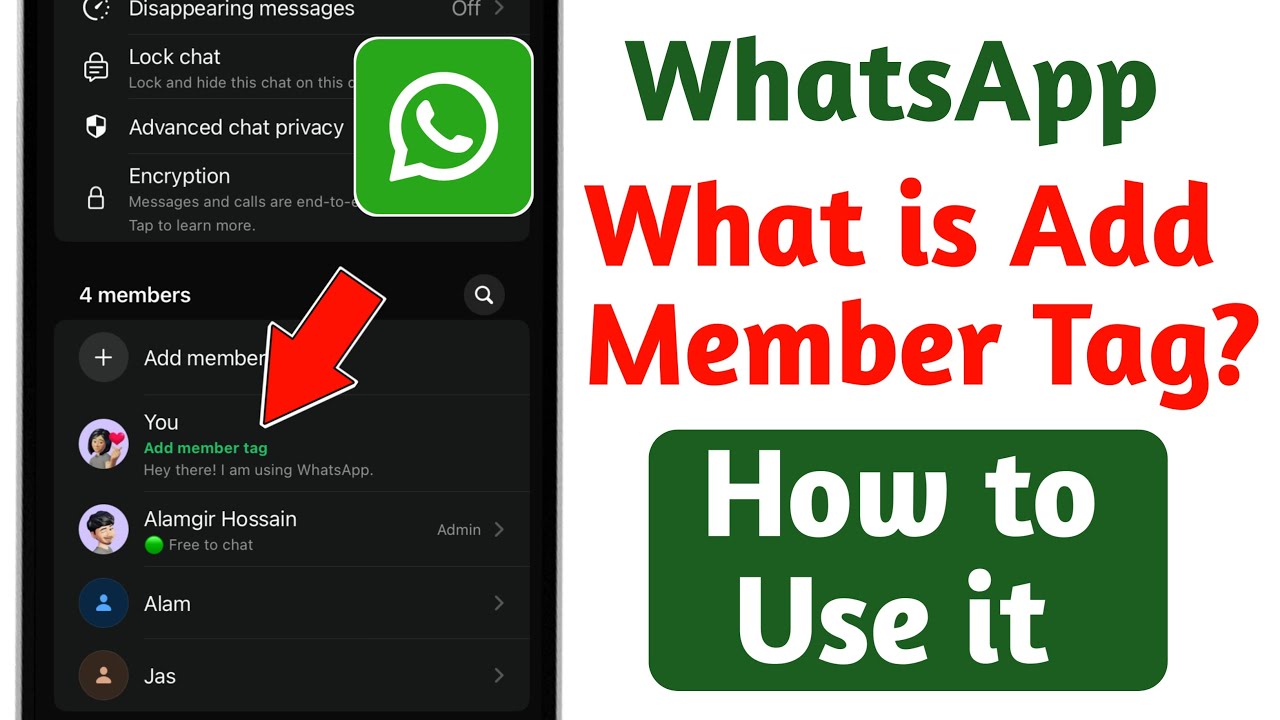
In early 2026, WhatsApp rolled out Member Tags, a fresh feature that lets users add a custom label or role below their name in group chats. This helps everyone quickly understand who you are in the group—especially useful in large or unfamiliar communities like school parent groups, office teams, local clubs ,worldwide family chats.
Member Tags appear under your name on every message you send and in the member list, visible to all current and future group members (up to 30 characters, text only—no emojis). Unlike individual mentions (@username), this is a persistent self-label you control per group.
what Member Tags are, why they matter, step-by-step how-tos for Android and iOS, editing/deleting, tips for everyday use, comparison with other WhatsApp features, tables, and FAQs. Perfect for group admins, organizers, and members wanting better clarity in busy chats.
Why Use WhatsApp Member Tags?
- Instant Context: In big groups (up to 1,024 members), tags like “Class Teacher”, “Event Organizer”, “Anna’s Mom”, or “Goalkeeper” avoid repeated introductions.
- Better Organization: Clubs, parent groups, communities, or work teams instantly know roles.
- Custom per Group: Set different tags in different chats (e.g., “Coach” in sports group, “Cousin” in family).
- Visible to All: Helps new joiners understand participants quickly.
- Free & Simple: No extra cost; rolls out globally in 2026 updates.
The feature launched January 2026 alongside text stickers and event reminders, enhancing group usability without complexity.
WhatsApp Member Tags vs. Other Mention Features (2026)
| Feature | Member Tag | @Individual Mention | @all / Mention Everyone (if available) | Group Name Mention Hack |
|---|---|---|---|---|
| Purpose | Show your role/title per group | Notify one person | Notify all members (limited rollout) | Notify all via group name |
| Visibility | Persistent under name & list | One-time notification | One-time notification | One-time notification |
| Who Controls | You (self-set) | Sender | Sender | Sender |
| Appears On | Every message & member list | Only in message bubble | In message bubble | In message bubble |
| Available Platforms | Mobile app (Android/iOS) | All platforms | Mobile (rolling out) | Mobile |
| Characters/Format | 30 text chars, no emoji | Username only | N/A | Group name |
| Best For | Long-term role clarity | Quick pings | Urgent announcements | Large groups workaround |
Member Tags focus on identity, not notifications—complements mentions.
How-To: Add a Member Tag in WhatsApp (Step-by-Step)
On Android & iOS (Mobile App Only)
- Open WhatsApp and ensure it’s updated (Play Store/App Store → check for updates).
- Enter the Group Chat where you want to add your tag.
- Tap the Group Name at the top (or group icon) to open Group Info.
- Scroll to Members List — find You at the top (or your name highlighted).
- Tap Add member tag (or your name → Add member tag).
- Enter Your Tag — type up to 30 characters (e.g., “Event Coordinator”, “Local Admin”, “Bihar Rep”).
- Tap Save — tag applies instantly.
- Verify — send a message in the group; your tag appears below your name for everyone.
Edit or Delete Your Member Tag
- Go back to Group Info → Members → tap your name or Edit member tag.
- Change text or clear field → Save (clear = delete tag).
- Changes apply immediately—visible to all.
Note: Only you can set/edit your own tag. Admins cannot add tags for others. Feature availability may vary by device/update—keep WhatsApp current.
Offline Tip (Mohanpur/Bihar): Setup needs internet once; tag stays visible even offline for group members.
How-To: Use Member Tags Effectively in Groups
- For Admins/Organizers: Set tag like “Group Admin” or “Volunteer Lead” to establish authority.
- For Members: Use “New Member”, “Parent of Class 5”, or “Cricket Captain” for context.
- Large Communities: Tags reduce confusion when many join over time.
- Combine with Mentions: Tag yourself → type @yourname to notify while showing role.
Tips for WhatsApp Member Tags in 2026
- Keep tags short & clear (30-char limit).
- Update tags when role changes (e.g., after event ends).
- In family/local groups: Use fun titles like “Biryani Expert”.
- For low-data users: Tags load fast—no heavy media.
- Privacy: Tags visible only in that group; new joiners see them immediately.
FAQs: WhatsApp Member Tag Feature 2026
1. What is the WhatsApp Member Tag feature?
A 2026 update letting you add a custom role/label (up to 30 text characters) under your name in a specific group chat, visible to all members.
2. How do I add a Member Tag?
Open group → tap group name → Members list → tap your name → Add member tag → enter text → Save.
3. Can I use emojis in Member Tags?
No—text and punctuation only (no emojis).
4. Who can see my Member Tag?
All current and future group members see it below your name on messages and in member list.
5. Can I have different tags in different groups?
Yes—tags are per-group; set unique ones everywhere.
6. Can admins add tags for other members?
No—only you can set your own tag.
7. Is Member Tag available worldwide?
Yes—rolling out globally on Android & iOS in 2026 updates.
